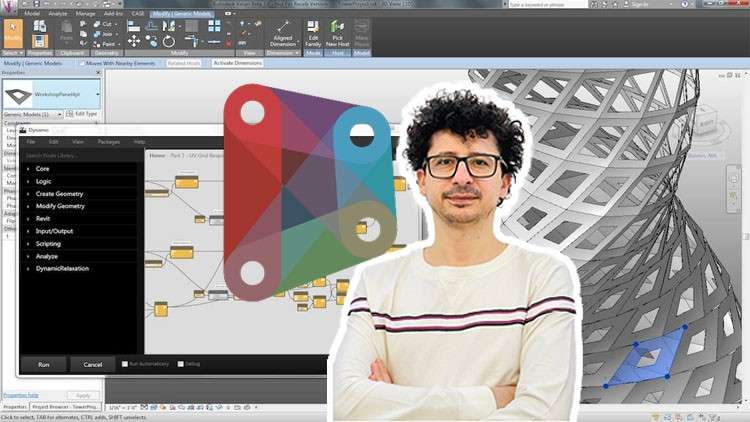
Dynamo Unleashed: Empowering Efficient Revit Workflows for Intelligent Parametric Modeling, Seamless Element Placement
What you will learn
Selection Nodes with Practical Examples
Element Nodes with Practical Examples
Placing Elements in Different Positions in Revit File Using Dynamo
Professional Parametric Modeling Project of a Room Using Dynamo
Using Mass Patterns in Dynamo and Assigning Them to Skins
Import XYZ Points from Excel into Dynamo and Convert Them into Shapes
Create Levels in Revit Intelligently with Dynamo in Seconds
Creating Sheets in Revit with Dynamo
Add Required Views to Sheets Automatically
Many Examples of Different Topics
Description
Note: The main difference in this course compared to others is that we have not confined ourselves to explaining simple techniques. Instead, we have conveyed the subject through challenging projects and specific tricks, which are the result of numerous experiences.
- Are you ready to unlock the power of Dynamo and transform your Revit workflow?
- Ready to take your Revit projects to the next level?
- Ever wondering how is sheet arrangement done with Dynamo?
Join our comprehensive Udemy course on Dynamo, where we delve into practical examples that will revolutionize your workflow. Learn to effortlessly select and manipulate nodes for efficient modeling, while gaining a solid grasp of element nodes through hands-on projects.
Discover the art of dynamically placing elements at various positions within your Revit files, all with the intelligence of Dynamo. Dynamo’s magic extends to sheet creation. Learn how to automate the process of generating sheets in Revit, complete with required views placed precisely where they belong. From start to finish, our course is packed with diverse examples and topics that will equip you with the skills you need to become a Dynamo pro.
Headlines:
- Selection Nodes with Practical Examples
- Element Nodes with Practical Examples
- Placing Elements in Different Positions in Revit File Using Dynamo
- Professional Parametric Modeling Project of a Room Using Dynamo
- Using Mass Patterns in Dynamo and Assigning Them to Skins
- Import XYZ Points from Excel into Dynamo and Convert Them into Shapes
- Create Levels in Revit Intelligently with Dynamo in Seconds
- Creating Sheets in Revit with Dynamo
- Add Required Views to Sheets Automatically
- Many Examples of Different Topics
If you are currently a BIM modeler or planning to become one, it is essential not to limit yourself to any form. You should be able to manage any architectural design in the BIM process And in the end, you will be the hero of this training. Please watch this course and feel free to ask me any questions you have while watching it.
Content
Introduction
Application and Use of Selection Library
Application and Use of Get & Set Nodes
Exercise (Sinusoidal Modeling of Columns)
Exercise (Wall Modeling by Dynamo)
Exercise (Beam Modeling with Dynamo)
Practice (Floor Modeling with Dynamo)
Practice (Ceiling Modeling with Dynamo)
Practice (Family Placement Based on Points)
Exercise (Coloring Elements Based on Parameters)
Exercise (Checking Project Furniture Based on Rooms)
Exercise (Multiplication of Elements Along the Path)
Practice (Modeling Based on the Pattern of the Mass Environment)
Practice (Using Adaptive Mass on Mass)
Exercise (Modeling Based on Excel Data)
Exercise (Placement of Families Based on AutoCAD and Excel Files)
Practice (Creating and Managing Levels with Dynamo)
Exercise (Creating and Managing Levels Based on Excel)
Exercise (Copying and Adding Views in the Sheet with Dynamo)
Exercise (Output of Revit View Information to Excel)
Practice (Modeling Shed with Dynamo)
Exercise (Creating Floor Based on Rooms)
Exercise (Showing Rooms in 3D View by Dynamo)
Exercise (Creating Room Based on Excel)
Exercise (Control and Adjustment of Texts in Revit by Dynamo)
Practice (Setting the Color of the Panels Randomly)
Exercise (Showing the Connection Elements Relative to Each Other)
Checking Element Type Nodes
Checking New Nodes in Revit
Checking Selection Nodes
Checking the Warning Nodes
Exercise (Creating Topography Based on the Image)
Exercise (Parametric Tower Modeling in Full)
Unleashing Dynamo: A Deep Dive into Intermediate Parametric Power
Alright, let’s talk about that “BIM- Dynamo Intermediate (Level 2)- Project Based” course. As someone who’s been knee-deep in Revit and its parametric potential for a while now, I was curious to see how this course bridged the gap from basic Dynamo scripting to something more akin to **job-ready skills** for complex projects. And honestly? It largely delivered, offering a much-needed step up for those of us who’ve outgrown the beginner tutorials and are itching for practical, **real-world projects**.
Overview
This isn’t your typical “click here, type this” kind of course. It’s designed to get you thinking *parametrically* and then *applying* that thinking to solve tangible Revit challenges. The emphasis on **project-based learning** is its strongest suit. Instead of just showing you a node, they throw you into scenarios where you have to figure out *which* nodes to use and *how* to string them together to achieve a specific outcome. We’re talking about everything from manipulating element selection with precision to the nitty-gritty of actually placing and modifying elements in your Revit model programmatically. The move into creating levels, views, and even entire sheets automatically is where things really start to feel like you’re building **automation scripts** that can genuinely save hours on a project. And let’s not forget the power of importing point data – that’s a game-changer for site analysis and custom geometry.
Prerequisites
This is definitely a **Level 2** course, so don’t walk in expecting to learn what Dynamo *is*. You need a solid foundational understanding of Revit’s interface and basic BIM concepts. Crucially, you should have already gone through a Dynamo introductory course or have equivalent self-taught knowledge. Being comfortable with navigating the Dynamo interface, understanding data types (like lists, points, and geometry), and having a grasp of fundamental scripting logic (like iterating through elements) is essential. Think of it as needing to know your ABCs before you can write a compelling story.
Skills & Tools
The primary tool, of course, is **Dynamo** itself, and by extension, **Revit**. The course arms you with the ability to leverage a wide array of Dynamo nodes for selection, element creation, and data manipulation. You’ll hone your skills in:
- Intelligent element selection and filtering.
- Programmatic element placement and modification.
- Parametric geometry generation and manipulation.
- Data import/export capabilities (specifically Excel to Dynamo).
- Automating the creation of Revit documentation elements like levels, views, and sheets.
- Applying massing and form-finding techniques.
These are all critical **industry-standard tools** and skills that are increasingly in demand.
Career Benefits & Job Roles
Investing in this kind of intermediate Dynamo training is a smart move for **career growth**. It positions you as a more valuable asset to any BIM team. You’re not just a Revit user anymore; you’re a **BIM specialist** capable of tackling complex tasks and driving efficiency. This opens doors to roles like:
- BIM Coordinator
- BIM Specialist
- Computational Designer
- Digital Design Lead
- BIM Technician (with advanced capabilities)
It’s a solid step towards **certification prep** in advanced BIM workflows and demonstrates a commitment to mastering **industry-standard tools**.
Pros
- Practical, Project-Driven Learning: This is the biggest win. You’re not just learning nodes; you’re learning to *solve problems* with nodes, which is what you’ll actually do on the job. The **real-world projects** feel authentic.
- Bridging the Gap to Advanced Workflows: It effectively takes you from basic scripting to complex parametric design and automation, which is a significant leap in capability and crucial for staying competitive.
- Focus on Efficiency and Automation: The emphasis on automating tasks like creating levels and sheets is invaluable. This is where you start seeing tangible time savings on projects, making you a highly sought-after team member.
- Comprehensive Node Coverage: The course touches on a broad spectrum of Dynamo functionalities with plenty of examples, ensuring you get a well-rounded understanding of what’s possible.
Cons
- Pacing Can Be Demanding: While the project-based approach is great, the sheer volume of topics and the depth of the **hands-on labs** can feel a bit rushed at times. If you’re not a quick learner or need extra time to digest complex concepts, you might find yourself needing to rewatch sections or do some supplementary self-study. It’s a fast-paced sprint through some powerful functionality.
Overall, if you’re serious about elevating your Revit and Dynamo game beyond the basics and want to be equipped with **job-ready skills** for more complex and efficient BIM workflows, this course is a strong contender. Just be prepared to put in the work!