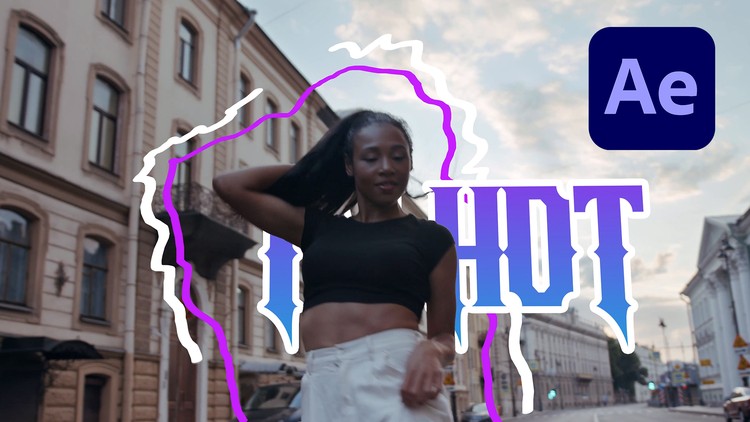
Learn how to creatively insert scribbles into videos while learning to use the rotobrush tool in After Effects.
What you will learn
Add scribbles to videos using brushes.
Do motion tracking in after effects.
Use mocha for motion tracking.
Use the rotoscope brush tool in after effects.
Why take this course?
Welcome to “Create a Brush Scribble Dance Video in Adobe After Effects”
Hello and welcome to this exciting free course! Whether you’re a video editor, motion graphics enthusiast, or a creative looking to add a unique flair to your projects, this course is designed just for you. Get ready to dive into the world of Adobe After Effects and learn how to transform a simple dance video into a dynamic, eye-catching masterpiece using scribble effects. Let’s bring your creativity to life!
Why This Course is Important
In today’s digital age, video content is king, and adding creative effects can make your work stand out. Scribble effects are a fun and innovative way to add energy and personality to dance videos, promotional content, or social media posts. By learning how to use tools like the Roto Brush and Mocha for tracking, you’ll gain skills that are highly sought after in the video editing and motion graphics industry. These techniques can be applied to a wide range of projects, making them a valuable addition to your creative toolkit.
What You’ll Learn
This course is packed with hands-on, step-by-step tutorials that will teach you how to create a brush scribble dance video in Adobe After Effects. You’ll learn:
- Cutting Out a Character with the Roto Brush Tool: Master the art of isolating a dancer from the background with precision and ease.
- Tracking Footage Using Mocha: Learn how to track movement seamlessly to ensure your effects follow the action perfectly.
- Adding Scribble Effects into the Video: Discover how to create and animate scribble effects that sync with the dance moves for a dynamic and engaging result.
- Homework: Apply what you’ve learned by creating your own scribble-enhanced dance video.
Each lesson is designed to be beginner-friendly yet packed with professional techniques to elevate your video editing skills.
Why Learn From Me?
With 9 of experience in video editing and motion graphics, I’ve worked on a variety of projects, from music videos to commercial campaigns. I’ve also taught thousands of students worldwide, helping them master Adobe After Effects in a simple and engaging way. My teaching style is practical, focused, and designed to help you achieve real results. When you learn from me, you’re learning from someone who’s passionate about helping you succeed.
Join the Course Today!
Don’t miss this opportunity to learn how to create stunning brush scribble dance videos for free! Whether you’re looking to enhance your portfolio, impress clients, or simply explore your creativity, this course is your chance to master Adobe After Effects and create something truly unique. Enroll now and start your journey toward becoming a motion graphics pro!
Join the course today. Let’s turn your dance videos into works of art!
- Course Overview
- Discover the intersection of static vector art and dynamic cinematography through a comprehensive exploration of hybrid media. This course delves into the specific aesthetic of hand-drawn digital overlays, providing a roadmap for students to bridge the gap between two of Adobe’s most powerful creative engines.
- Unpack the conceptual framework behind modern music videos and commercial advertisements that utilize the popular “scribble” or “glowing line” effect to enhance storytelling and visual energy.
- Understand the fundamental differences between raster and vector graphics, and why starting with a clean vector foundation in a professional workspace is essential for high-quality video production.
- Explore the psychological impact of motion and how adding organic, hand-crafted elements to digital footage can create a more engaging and personalized experience for the viewer.
- Learn the systematic approach to project planning, from sketching initial concepts to final rendering, ensuring a smooth transition between the design phase and the animation phase.
- Master the art of visual timing, learning how to synchronize animated strokes with the rhythm of the music or the movement of a subject within a video frame.
- Analyze the industry-standard workflow used by professional motion designers to keep files lightweight and manageable even when dealing with complex, multi-layered compositions.
- Requirements / Prerequisites
- A functional computer system (Windows or macOS) capable of running the latest versions of the Creative Cloud suite, specifically focusing on hardware that supports multi-threaded processing for video rendering.
- A minimum of 16GB of RAM is highly recommended to ensure that the live preview features in the motion software function smoothly without excessive lagging during the animation process.
- Access to a digital drawing tablet (such as Wacom or Huion) is beneficial but not mandatory, as the course covers techniques for achieving professional results using a standard mouse or trackpad.
- An active subscription to Adobe Creative Cloud, providing access to both the vector illustration software and the motion graphics environment simultaneously.
- Basic digital literacy, including the ability to navigate file directories, manage compressed folders, and understand standard resolution formats like 1080p and 4K.
- A creative mindset and patience for frame-by-frame refinement, as detailed animation work requires a high level of focus and attention to detail.
- Skills Covered / Tools Used
- The Pen and Pencil Toolset: Mastering the precision of path creation to build scalable assets that maintain perfect clarity regardless of the final output size.
- Layer Hierarchy and Management: Developing a disciplined naming convention and organization structure to facilitate seamless asset importing between different software environments.
- Keyframe Interpolation: Gaining a deep understanding of linear, easy-ease, and hold keyframes to control the velocity and “feel” of every moving element on the screen.
- The Effects Control Panel: Navigating a library of visual enhancers to add glows, blurs, and textures to your vector overlays, giving them a cinematic finish.
- Temporal and Spatial Graph Editors: Fine-tuning the physics of motion to ensure that your animations don’t look robotic, but rather fluid and natural.
- Dynamic Link Integration: Utilizing the internal bridge between applications to make real-time updates to your artwork without needing to re-import files constantly.
- Composition Nesting: Learning how to use pre-compositions to keep your timeline clean and allow for complex global changes across multiple animation segments.
- Blending Modes and Transparency: Experimenting with different overlay styles like “Screen,” “Add,” and “Overlay” to realistically integrate digital drawings into live-action plates.
- Benefits / Outcomes
- Build a high-quality, professional portfolio piece that showcases a unique niche skill set currently in high demand within the social media marketing and music industries.
- Develop the ability to charge premium rates for freelance services by offering a specialized “mixed media” look that standard video editors cannot easily replicate.
- Gain the confidence to tackle complex creative briefs by understanding the technical limitations and possibilities of vector-to-video workflows.
- Enhance your creative problem-solving skills by learning how to troubleshoot common software glitches and performance bottlenecks during the rendering process.
- Streamline your creative output by adopting professional keyboard shortcuts and customized workspaces that reduce the time spent on repetitive technical tasks.
- Understand how to optimize your final exports for various platforms, ensuring your work looks crisp and professional on everything from mobile screens to large desktop monitors.
- Cultivate a unique artistic voice by learning how to blend traditional drawing sensibilities with modern digital technology.
- PROS
- The course offers a dual-software approach that maximizes the value of your Adobe subscription by teaching you how to use tools in tandem rather than in isolation.
- Provides a direct path to creating trending visual content, making your skills immediately applicable to current market demands and social media trends.
- Heavy focus on project-based learning ensures that you have a tangible result to show for your time spent, rather than just theoretical knowledge.
- The techniques taught are highly versatile and can be applied to logo animation, UI/UX presentations, and broadcast design beyond just “scribble” effects.
- CONS
- The rendering and preview process in motion graphics software can be resource-intensive, which may lead to slower performance on older or entry-level laptop hardware.