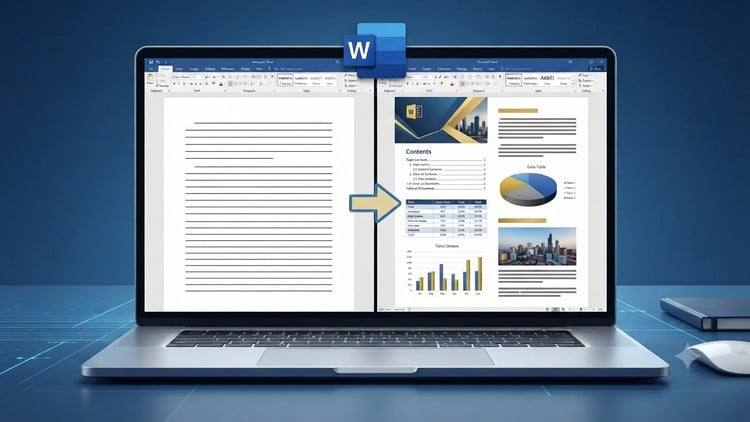
Master every command from File to View, conquer the MOS 110 exam, and transform ordinary documents into stunning works
What You Will Learn:
- Complete Menu & Command Mastery: Navigate and execute virtually every command across every menu in Microsoft Word—from the File tab to the View tab.
- Professional Document Transformation: Turn basic, uninspired text into polished, highly functional, and visually striking professional documents for any usecase
- Advanced Tool Utilization: Leverage sophisticated features like references, automated navigation & complex formatting tools to streamline heavy document editing
- Evaluative exercises to prepare you for MS WORDS MOS professional Exam Certification
An Honest Take on the MS Word Masterclass: Beyond the Basics
Let’s be honest: most people list “Microsoft Word” on their resume as a default setting, right next to “breathing” and “checking email.” But after fifteen years in the tech sector, I can tell you that there is a massive gulf between “I can type a letter” and “I can manage a 200-page technical manual without the formatting breaking every time I hit Enter.” This is where the MS Word Masterclass: From Beginner to Advanced Professional steps in, and frankly, it’s a bit of a wake-up call for anyone who thinks they’ve mastered the ribbon.
What I appreciated most about this course wasn’t just the “how-to” of the buttons, but the “why” behind document architecture. We’ve all been in that position where a single image move sends the entire document into a chaotic tailspin. This course tackles that head-on. It moves at a clip that respects your time but dives deep enough into the **industry-standard tools** that you actually feel like you’re gaining a new superpower. It’s less about memorizing menus and more about developing job-ready skills that actually translate to a faster workflow and less frustration during crunch time.
Prerequisites
The beauty of this beginner to advanced trajectory is that the entry bar is remarkably low. You don’t need to be a “computer person” to get started, but you do need a few things to get the most out of the **hands-on labs**:
- A Copy of Microsoft Word: Ideally the Microsoft 365 version or Word 2019/2021, as some of the newer UI elements are specific to these versions.
- Basic Computer Literacy: If you can download a file and move a mouse, you’re qualified.
- A Dual-Monitor Setup (Optional but Recommended): Trust me, you’ll want the course on one screen and Word open on the other so you can follow along in real-time.
- Patience for Detail: This isn’t a “get rich quick” scheme; it’s a professional deep dive. Be prepared to actually do the work.
Skills & Tools Covered
This course is essentially an encyclopedia of document processing. You start with the basics of the interface but quickly graduate to the heavy lifting. You’ll spend significant time mastering the Styles and Themes engine—which is the secret sauce to professional consistency.
- Advanced Layout & Design: Learning how to use section breaks (the right way) and multi-column layouts for complex reports.
- Automation Tools: Weaving in automated navigation, dynamic Tables of Contents, and cross-referencing that updates itself.
- Mail Merge & Mass Communication: A lifesaver for administrative roles that involves more than just printing labels.
- Collaboration Features: Mastering “Track Changes” and “Comments” for high-stakes real-world projects where multiple stakeholders are involved.
- MOS 110 Alignment: The course specifically structures its evaluative exercises to mirror the official Microsoft Office Specialist exam patterns.
Career Benefits & Job Roles
If you’re looking for career growth, specialized software mastery is a low-hanging fruit with high ROI. Completing this course and pursuing the certification prep for the MOS 110 exam puts a verified stamp on your skills. This isn’t just for “Office Admins” anymore. In the world of remote work, being the person who can produce a polished, highly functional document is a major asset.
- Technical Writers: Who need to manage complex documentation with precision.
- Legal Professionals: Where “References” and “Citations” aren’t just features—they are legal requirements.
- Project Managers: Who need to turn messy data into clean, readable executive summaries.
- Marketing Specialists: Using Word for high-end layouts and brand-consistent proposals.
The Pros
- Direct Path to Certification: The focus on certification prep is excellent. It doesn’t just teach you Word; it teaches you how to pass the exam, which is a tangible win for your LinkedIn profile.
- Practicality Over Theory: The **hands-on labs** ensure you aren’t just watching a video; you are actually building something. This is crucial for retaining job-ready skills.
- Efficiency Gains: I found myself learning shortcuts and “hidden” commands that I estimate will save me at least 3-4 hours of formatting work every month.
The Cons
- The “Deep End” Factor: For a total novice, the transition from the “File” tab to “Advanced References” can feel a bit like jumping into the deep end of a pool. While the instructor is clear, the sheer volume of commands in the latter half of the course can be overwhelming if you don’t take frequent breaks to practice.