A Masterclass
What you will learn
Students will get an in depth knowledge of Functionality of AutoCAD Electrical software. Using this knowledge, students can create professional electrical control drawings.
Description
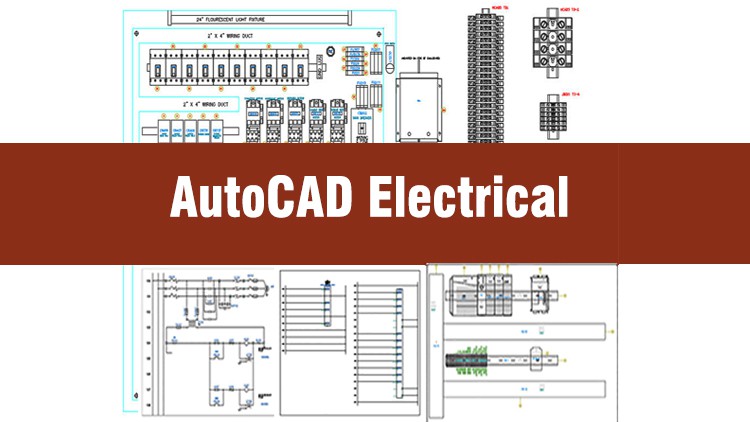
AutoCAD Electrical is the software of the AutoCAD suite which is intended to help control designers with the creation and modification of control systems. This software has extended features to automate control engineering tasks, such as building circuits, numbering wires, and creating bills.
For electrical engineers it’s good for making circuit layout to power plant layout. This module include electrical schematic components, automatic report generation, PLC I/O drawing for spreadsheet, and so on.
This course is basically designed to assist the engineering students and the practicing designers. Keeping in view the varied requirements of the students, this course covers a wide range of tools and features such as schematic drawings, Circuit Builder, panel drawings, parametric and non-parametric PLC modules, stand-alone PLC I/O points, ladder diagrams, point-to-point wiring diagrams, report generation, creation of symbols, and so on. On the completion of this course, students will be able to create electrical drawings easily and effectively.
Salient Features of this Course:
- A comprehensive course consisting of 106 video lectures that are organized in a pedagogical sequence.
- Detailed explanation of all AutoCAD Electrical commands and tools.
- Step-by-step instructions to guide the users through the learning process.
- Two projects at the end of the course to enable the users to applythe skills learned in the course
- Practice Test
- Certificate of Completion
Content
The Real-World Verdict: Beyond Just Lines and Circles
I’ve spent the better part of a decade navigating the labyrinth of industrial automation, and if there is one thing I’ve learned, it’s that “vanilla” AutoCAD is a nightmare for electrical design. You end up wasting hours manually numbering wires and praying your bill of materials (BOM) is accurate. That’s why I jumped into the Complete Course in AutoCAD Electrical 2021. Don’t let the “2021” tag fool you—while Autodesk loves to push annual updates, the core engine of ACAD Electrical hasn’t changed drastically in years. This course is less about teaching you how to draw and more about teaching you how to manage data.
What sets this masterclass apart is the transition from manual drafting to automated engineering. Most beginner to advanced courses focus on the toolbar, but this one focuses on the workflow. It treats your drawing as a database. You aren’t just placing symbols; you’re assigning metadata that the software uses to generate cross-references and terminal strips. If you’ve ever had to manually update 50 pages of schematics because a component moved, you’ll appreciate why this course emphasizes the project manager toolset so heavily. It’s an honest, deep dive into how professional control panels are actually birthed in a production environment.
Prerequisites: What You Actually Need
Before you dive into these hands-on labs, don’t think you need to be a coding wizard or a master electrician. However, you shouldn’t go in totally blind. Here is what I recommend having in your back pocket:
- A basic understanding of industry-standard tools and the Windows OS environment.
- Familiarity with basic electrical symbols (know your NO from your NC contacts).
- Access to a version of AutoCAD Electrical (2021 or newer is fine; the logic remains the same).
- Patience. ACAD Electrical is a powerful but sometimes “clunky” beast that requires a methodical mindset.
The Toolkit: Skills & Tools You’ll Master
This isn’t a fluff course. It’s built around real-world projects that mirror what you’d find on a factory floor. By the end of the modules, you’ll have a solid handle on:
- Smart Schematic Design: Moving away from “dumb lines” to intelligent components that “talk” to each other across multiple drawing sheets.
- PLC I/O Integration: Learning how to automate the insertion of Programmable Logic Controller modules, which is a massive time-saver in industrial design.
- Panel Layouts: Creating 2D physical footprints that are scaled and accurate for cabinet assembly.
- Automatic Report Generation: One-click creation of Bill of Materials (BOM), wire from/to lists, and terminal plans.
- Project Management: Managing entire sets of drawings as a single cohesive unit rather than disconnected files.
Career Benefits & Job Roles
In today’s market, saying “I know AutoCAD” is like saying you know how to use a pen. It’s expected. But saying you specialize in AutoCAD Electrical? That’s where the career growth happens. This course is essentially a certification prep powerhouse that readies you for roles like:
- Electrical Drafter/Designer: Creating the blueprints for complex machinery.
- Controls Engineer: Designing the brains behind automated assembly lines.
- Panel Shop Manager: Overseeing the physical build of electrical enclosures using the drawings you created.
- System Integrator: Ensuring that various industrial components communicate correctly via proper wiring and documentation.
The demand for job-ready skills in the manufacturing and energy sectors is skyrocketing. Transitioning to an “Electrical” workflow can easily add a significant premium to your salary compared to general CAD technicians.
The Pros: Why This Course Works
- Methodical Pacing: It doesn’t rush the fundamentals. It ensures you understand the “Project” structure before you start slapping components on a page, which prevents massive headaches later.
- Focus on Automation: The course shines when it teaches you how to let the software do the heavy lifting—wire numbering, component tagging, and cross-referencing.
- Practicality: The examples used aren’t theoretical “hello world” circuits; they are the types of professional electrical control drawings you’ll see in the field.
The One Con: A Truthful Critique
If I have to be picky, the UI in AutoCAD Electrical 2021 (and even the newer versions) feels like a bit of a time capsule from the early 2000s. The course handles this well, but because the software itself is built on an older architecture, some of the “glitches” or “quirks” of the database can be frustrating for a complete novice. It would have been nice to see a dedicated section on troubleshooting “mismatched” databases which often plague users in real-world scenarios.
Final Thought
If you are looking to level up from a general designer to a specialized control systems pro, this is a top-tier investment. It delivers exactly what it promises: in-depth knowledge that turns a complex software suite into a manageable, job-ready asset.